 Documentation
Chat AI
Access CERIT-SC Chat AI, choose a model, and use language models for writing, coding, and working with research documents.
Introduction
Chat AI provides a browser interface to AI models hosted by CERIT-SC within e-INFRA CZ. The interface, called Open WebUI, lets you work with text, code, and documents without installing software locally.
You can use it to revise scientific writing, explore programming questions, extract information, and discuss research material. Some models also support images or tools for calculations.
This guide explains how to get access, choose a model, and use the main features. For scripts and automated workflows, see the OpenAI-compatible API guide.
Accessing Open WebUI
How to Get Access
Choose the registration route that applies to you.
| Your situation | How to get access |
|---|---|
| You have an active MetaCentrum account | Continue to Logging in. |
| You need a MetaCentrum account | Complete the MetaCentrum registration form |
| You are a Masaryk University student or staff member without a MetaCentrum account and you need to acces only AI chat and API | Use the Masaryk University fast-track registration. |
⚠️ Note: The Masaryk University fast-track registration provides access to AI chat and API services, with automatic approval. It does not provide full access to the Kubernetes platform; that requires a MetaCentrum account.
If you cannot register or sign in, contact k8s@cerit-sc.cz.
Data privacy
Before uploading research material, consider its sensitivity and your project’s data-handling requirements.
The standard hosted models run within e-INFRA CZ. However, external search tools and separately arranged third-party services may send information outside this infrastructure.
The chat interface stores conversations and uploaded files. The AI data privacy policy describes storage, logging, retention, and deletion limitations.
The chat interface is intended for general research assistance and is not certified for protected data. Before submitting sensitive, personal, classified, or otherwise restricted information, contact k8s@cerit-sc.cz to discuss a suitable setup.
Direct API access bypasses the chat interface’s conversation storage. This does not, by itself, establish that a workflow meets your data-protection requirements.
Logging in
- Open Chat AI.
- Select Login.
- Choose e-INFRA CZ and complete authentication.
- Once signed in, open a chat.
Using AI Models
Start your first conversation
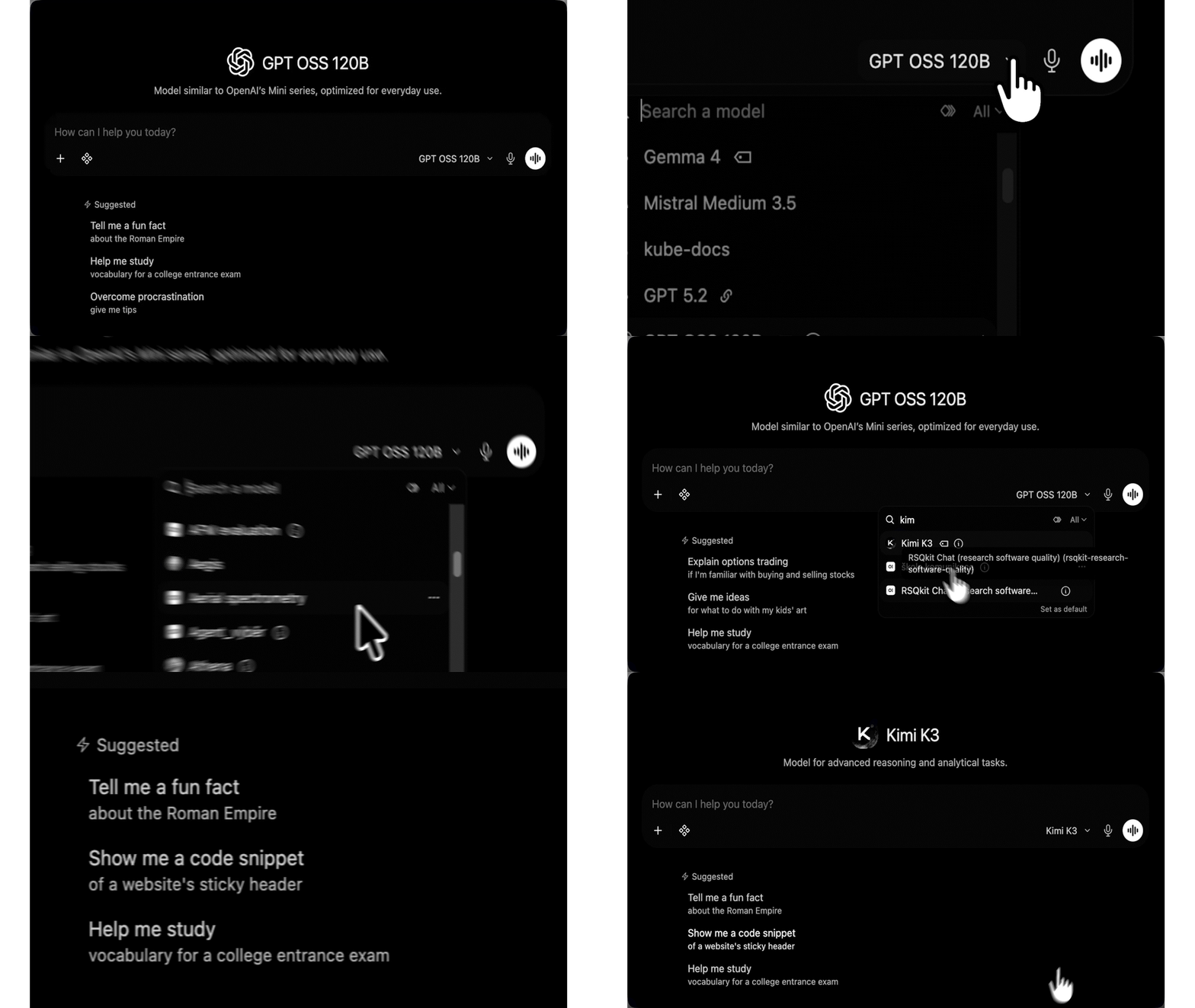
- Select a model from the menu at the top of the chat. Scroll through the menu to see additional models.
- Describe your task and provide the context needed to answer it.
- Specify the desired output, such as a paragraph, table, or code example.
- Send your message.
- Review the response and ask follow-up questions where needed.
Choose a model for your task
| Task | What to look for |
|---|---|
| Revising text, summarising, or extracting information | A general-purpose text model |
| Explaining or debugging code | A model suited to coding |
| Working through a complex problem | A reasoning model, followed by independent verification |
| Creating or reading images, scanning docs | A multimodal model with image support |
| Running a calculation through an enabled tool | A model that supports tool use |
| Building semantic search in an application | An embedding model accessed through the API |
Start with a model that meets your needs on a small, representative sample. A larger or slower model does not necessarily produce better results for every task.
Image understanding and image generation are separate capabilities. To create or edit an image, use the image tool described in Examples.
Currently available models
Use the LLM model catalogue to choose a model for your task.
Check the live status page to see which models are running.
- For chat, image input, tool support, and token limits, see generative models.
- For the model behind a short name used in a script, see model aliases.
- For document search and ranking, see embedding models and rerankers.
- To compare results on coding exercises, see programming benchmark scores.
If you call models from a script, use a maintained alias or an exact, case-sensitive identifier from the API model list.
How models are added, upgraded, and removed
CERIT-SC evaluates new models using benchmarks, community feedback, and their suitability for the available computing resources.
Because GPU capacity is shared and limited, model versions may be replaced or retired. Maintenance or urgent infrastructure requirements can also temporarily affect availability.
Changes are announced through the documentation and chat-interface notices. Check the live status page when planning a substantial workload.
No specific model version is guaranteed to stay available. Because we run on limited, shared GPU hardware, we replace models with better ones as soon as they are available — usually at night, but possibly at any time — and retire the old exact model name. The hardware may also occasionally need maintenance (we have no backup of comparable scale) or be temporarily diverted to urgent high-priority tasks, during which availability can be suspended. We announce such changes on this page and via WebUI banners.
For reproducible work (e.g. a bachelor’s or master’s / diploma thesis): plan for a replacement happening right before a deadline or defense. We do not guarantee that a specific model will remain available throughout the semester.
- Call models through a maintained alias so your code keeps running even after the underlying model is upgraded.
- An alias keeps your code working, not your outputs — a newer model may answer differently, so do not assume results stay reproducible over time.
- Keep local copies of important results, and if exact reproducibility is critical, contact us at k8s@cerit-sc.cz to discuss options.
Preserve your research results
A model may change during a thesis, publication, or other research project. For work that needs to be traceable:
- Record the exact model identifier and available metadata.
- Save prompts, relevant inputs, generation settings, and dates.
- Keep copies of outputs in accordance with your data-management plan.
- Re-evaluate your workflow after a model change.
Even with the same model, repeated requests may produce different outputs.
Using AI outputs in research
Treat model responses as material to evaluate. Check factual claims and references against original sources, test generated code, and verify calculations and extracted data.
For document-based questions, check that the cited passage supports the answer. Supplying a document does not guarantee a correct response.
Before applying an automated workflow to a large dataset, assess its quality on representative examples and define how errors will be identified and handled.
Examples
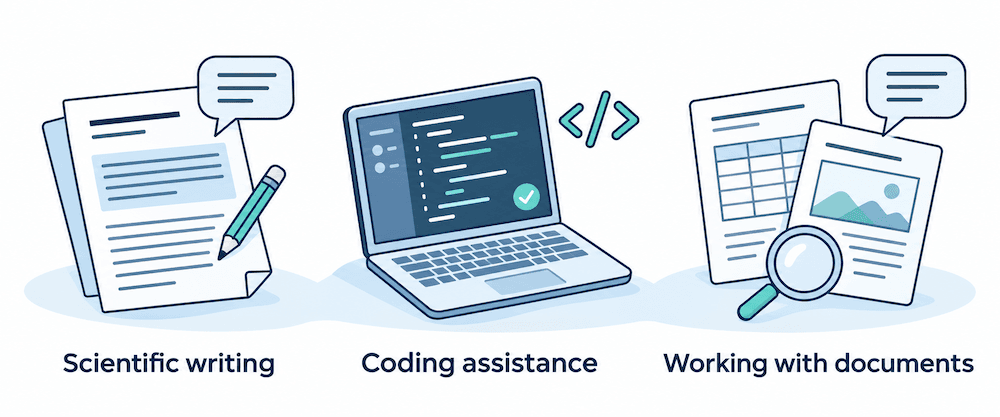
The examples below describe the documented interface. Available controls depend on the selected model and enabled tools.
Revise scientific writing
Provide the passage and specify what may change.
Revise this abstract for clarity and concision. Preserve the scientific meaning, numerical results, citations, and uncertainty.
Do not introduce new claims. Return the revised abstract followed by any ambiguities that need my attention.
Compare the revision with the original, particularly where it describes results, limitations, or causal relationships.
Explain or debug code
Include the relevant code, the expected behaviour, and any error message. Remove credentials and other confidential information.
Explain why this Python function fails for an empty input. Suggest the smallest correction and provide examples covering
an empty input, one value, and multiple values.
Review and test generated code before using it in an analysis.
Image-to-text (OCR scanner)
Use a model with image support to extract text from a scanned page or photograph.
- Select a multimodal model.
- Select + → Upload Files and upload the image.
- Describe the extraction task.
- Send the request and compare the output with the source.
Example:
Transcribe the text in this image. Preserve headings, line breaks, numerical values, and units.
Mark unreadable text as [unclear] instead of guessing.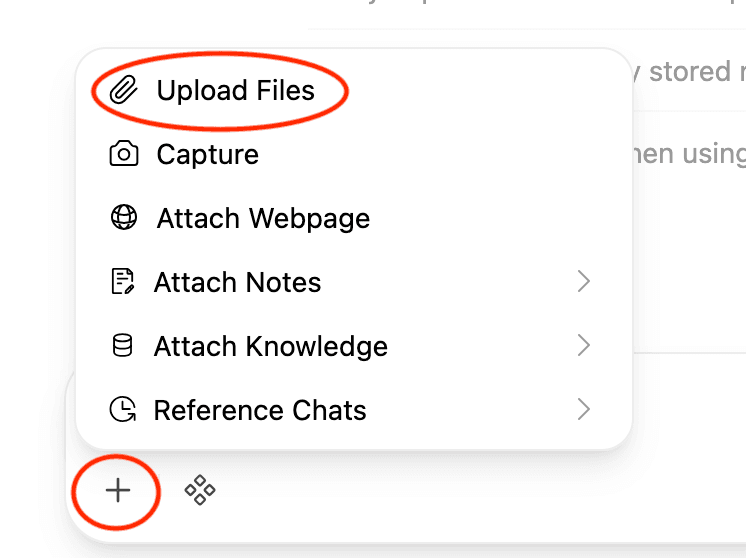
Check mathematical symbols, decimal separators, subscripts, and table alignment carefully.
For a scanned PDF, check whether direct upload works with your selected model and tool configuration. Individual page images can be used when necessary.
Image generation
Use the image tool to create illustrations for teaching, communication, or early design work.
- Select a chat model (multimodal).
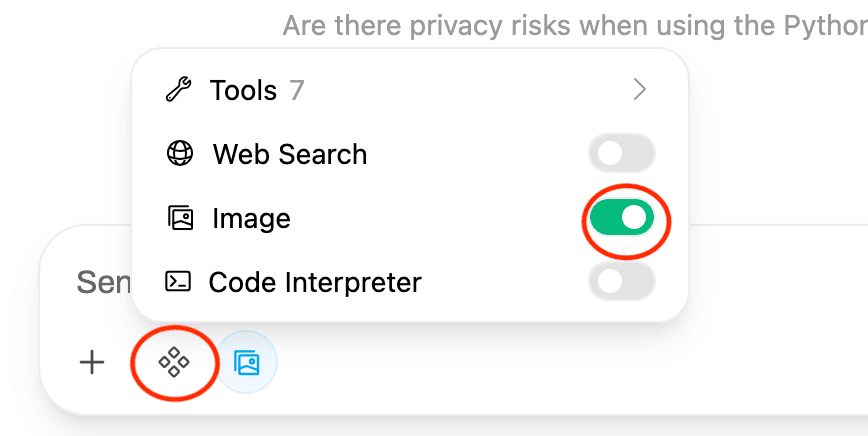
- Open the Integration control and enable Image.
- Describe the image you want.
- Send the request.
- Refine the result with follow-up instructions.
Example:
Create a simple illustration of a researcher using a notebook, a computing cluster, and a document collection.
Use a white background, blue accents, and no text.
Generated illustrations should not be presented as experimental observations. Use plotting or diagramming software when values, geometry, or scientific relationships must be exact.
Picture editor
- Select a model with image support (multimodal).
- Select + → Upload Files and upload an image.
- Open Integration and enable Image.
- Specify the changes and what should remain unchanged.
- Send the request and inspect the result.
Example:
Change the background of this conceptual illustration to white.
Preserve the objects, their positions, and their colours.
Keep the original file. Inspect details that the tool may have changed unintentionally.
Python sandbox for math/code tasks
The Python sandbox supports specific calculations and data transformations with text output. It is not a general-purpose programming environment.
- Select a model that supports tools.
- Open Integration → Tools.
- Enable Python Sandbox.
- Describe the calculation and provide the required data.
- Inspect the calculation and its output.
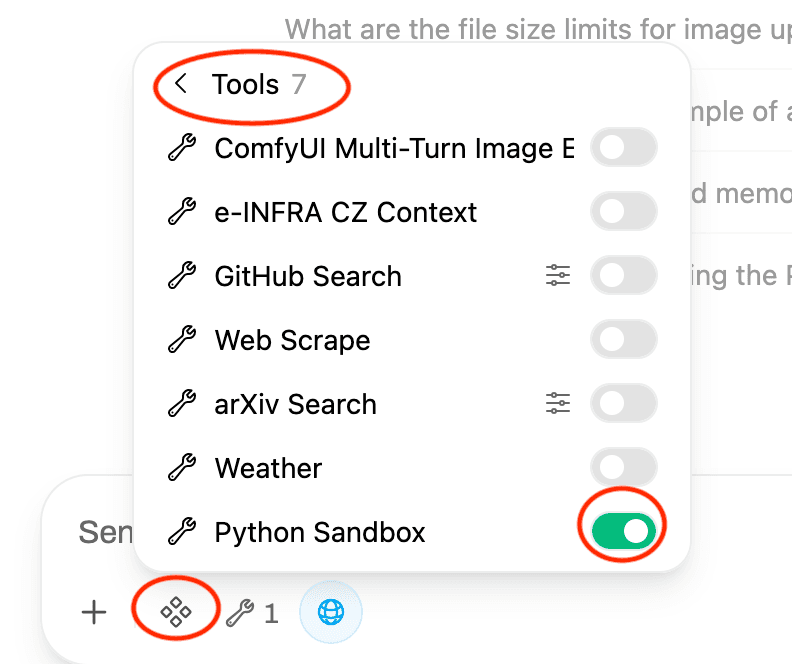
Example:
Calculate the mean and sample standard deviation of these measurements: 2.1, 2.4, 2.2, 2.6, and 2.3.
Show the Python code and state which standard-deviation convention you used.
The documented sandbox returns text and does not render plots. For plotting or a reproducible analysis environment, use JupyterHub or your own Python or R setup.
Knowledge function (alpha)
The experimental Knowledge function lets you query a collection of uploaded documents using retrieval-augmented generation (RAG).
RAG retrieves relevant passages and supplies them as context to a model. Uploading documents does not mean that the model has been trained on them.
The Knowledge function is intended for testing and preview. It is not currently recommended for production workflows.
The documented setup uses a shared embedding-model configuration. Changing that model can require documents to be processed again.
Retrieval quality depends on the language, document structure, text extraction, and how documents are split into passages. Test representative material before relying on the results.
Check answers against the original passages. Retrieved text and citations do not guarantee that the model’s interpretation is correct.
Before uploading a document collection, review the data privacy policy, including file-retention and deletion limitations.
Creating an API key
An API key lets your scripts and applications authenticate to the AI service.
- Open Settings in Chat AI.
- Select Account.
- Open API keys.
- Generate a key or display an existing one. Use the API key rather than the separately displayed JWT token.
- Store the key securely and configure your application to use it.
The documented API base URL is:
https://llm.ai.e-infra.cz/v1/Do not share API keys or include them in notebooks, source repositories, screenshots, or chat messages. Use an environment variable or a suitable secret-management mechanism.
For requests, supported features, and client configuration, follow the API guide.
Monitor API usage
The usage dashboard shows token consumption through the API after you sign in with your e-INFRA CZ account.
It does not include token consumption through the chat interface.
A practical guide to using AI chat
A useful prompt usually contains four elements:
- Task: what you want the model to do.
- Context: the material and background needed for the task. Include what the model cannot easily find out on its own.
- Constraints: what to preserve, exclude, or treat as uncertain.
- Output: what counts as done, and in what form (table, numbered list, named sections).
For example:
Using only the supplied methods section, extract the sample size,
instruments, experimental conditions, and statistical tests.
Return a table with one row per item and a supporting quotation.
Write “not stated” when the section does not provide the information.
Review the response before refining the prompt. If something is missing or incorrect, identify it directly and explain the correction you need.
Clear instructions can improve usefulness, but they do not guarantee accuracy. Verify references, calculations, extracted values, and scientific claims against appropriate sources.
Set a role
Start the prompt by assigning a role to the model and stating your own. A role changes which associations the model draws on, and telling it that you will check the result changes how carefully it works.
You are a reviewer of bioinformatics pipelines. I am the author of this
pipeline and know its history; I will check every claim you make.
Write criteria that can be checked
Describe the shape of a correct answer, not the answer itself. Criteria you can verify:
- every section of the paper appears exactly once, in the original order,
- no section is summarised in more than three sentences,
- every claim says where in the text it comes from,
- anything the model could not determine is marked unknown, not filled in.
Instructions such as “be thorough”, “do not miss anything” or “explain well” cannot be checked, so they do not help.
Add constraints and stop rules
If the model must not do something, say so explicitly:
- Do not modify the input. Report only.
- If a file or section is missing, say so and stop.
- Do not describe a part of the document you have not been given.
Constraints usually come from a previous attempt: when something goes wrong, turn it into a rule in the next prompt.
Leave room for uncertainty
The model tries to complete the task and will fill gaps unless told otherwise. Give it a way out:
- If you are not sure, say so.
- If you need information you do not have, ask once, then stop.
Split large tasks into steps
Asking for everything at once tends to produce an average answer. Break the work into stages, each narrowing what the next has to look at:
- Inventory: list the items (sections, files, datasets) without interpretation.
- Group: organise them by topic or type.
- Read selectively: examine in detail only what the inventory does not explain.
- Collect: assemble the result in the requested output format.
Avoid leading questions
Language models tend to agree with the person asking. Do not reveal the answer you hope for.
| Leading (likely to get “yes”) | Neutral (forces the model to look) |
|---|---|
| Is this result significant? | Which statistical test was used, what is the reported p-value, and where is it stated? |
| Does the method use cross-validation? | Describe how the data were split for training and evaluation. Quote the relevant passage. |
You can also give explicit permission to disagree: Point out gaps and anything that looks wrong.
Start a fresh conversation for each task
- Cost and speed: every turn re-sends the whole conversation, so long conversations are disproportionately expensive.
- Drift: early messages keep influencing the answer even when they are no longer relevant. Quality can degrade long before the context window is full.
- Honest testing: a prompt that only works in a conversation that has already seen the answer does not really work.
If the model apologises (“I apologise, I assumed…”), treat it as a signal that the task, context, or constraints are unclear. Fix the prompt and start a new conversation rather than arguing with the current one.
Validate in a second conversation
Give the output to a new conversation with the opposite role:
You are a strict reviewer. Find gaps, invented claims, and
inconsistencies in the following summary. Do not fix them, list them.
Validation is a different task from producing the answer and deserves its own prompt.
Reuse prompts that work
| If the instruction should apply… | Use… |
|---|---|
| once, right now | a normal message |
| whenever you repeat the same kind of task | a saved prompt template you paste in |
| in every conversation, whatever the task | a system prompt, if your client supports one |
Keep system prompts short and general, since they are sent with every request. Longer templates are fine because you only use them when needed.
Before and after
Before:
Give me a recipe for dinner.After:
You are a cook who knows Vietnamese home cooking; I am an impatient
amateur. Give me a light dinner recipe for two, ready in 45 minutes
including preparation. I have shrimp, rice noodles, cabbage, garlic
and lime; avoid peanuts and anything sweet. Output: full ingredient
list first, marking what I do not have; then numbered steps with a
time estimate each. If 45 minutes is not realistic, say so instead of
squeezing the steps.
The request is the same, but the second version can be checked line by line.
Adjusting model settings
Shared service
The defaults are usually fine. Because the models run on shared hardware, change settings with efficiency in mind.
Context size
The maximum amount of text the model can consider at once, measured in tokens. It covers your prompt, the conversation history, and the response. Larger values use more GPU memory and slow down responses for everyone, so set it to what the task needs, not to the maximum.
| Use case | Context size |
|---|---|
| Most conversations, short documents, code snippets | 8k-16k tokens |
| A long paper or several documents together | 32k-64k tokens |
| A whole book or large codebase in one pass | Up to the model’s maximum (256k for some models), only when really needed |
Paste only the relevant parts of long documents, and start a new conversation instead of continuing a long one.
Max output tokens
Caps the length of the response. Lower it to avoid long, unneeded answers and runaway generation.
Temperature
Controls how random the output is.
| Use case | Temperature |
|---|---|
| Extraction, summarisation, code (consistent, repeatable results) | 0 to 0.3 |
| Brainstorming, drafting (variety helps) | 0.7 to 1 |
Temperature does not change the cost of a request, so there is no efficiency reason to raise it.
Top-p
An alternative way to limit randomness. Adjust either top-p or temperature, not both.
Model choice and reasoning modes
- Choose the smallest model that does the job well.
- Enable reasoning or “thinking” modes only for problems that need them, since they generate many additional tokens.
Shared resources and benchmarking
The platform is shared across the research community. Response times vary with model choice, request length, and current demand.
For automated work, limit concurrent requests and evaluate your workflow on a small sample before processing a large dataset.
Independent benchmarks require prior consultation. Contact k8s@cerit-sc.cz before running them. Because our LLM infrastructure is shared by many users simultaneously, running independent benchmarks during peak times creates bottlenecks and yields inaccurate data:
- Requests accumulate in a shared queue, meaning your performance metrics will reflect server wait times rather than actual model processing speed.
- Heavy testing restricts vital resources for peers relying on these models for active research.
Measurements on a shared service include queueing and other operational effects. Record workload conditions when interpreting performance results.
Help and troubleshooting
| Problem | What to check |
|---|---|
| You cannot sign in | Confirm that registration is complete and that you are using the correct institutional identity. |
| A model is missing | Check the model menu and status page; the model may have changed or been retired. |
| A tool is unavailable | Check that the selected model supports it and that the tool is enabled. |
| Image processing fails | Check model image support and the uploaded file format. |
| Responses are slow | Check service status and try a shorter request or another suitable model. |
| An answer is unsupported or incorrect | Inspect the source material, clarify the task, and verify the result independently. |
For assistance, contact k8s@cerit-sc.cz. Include the approximate time, model name, and a description of the problem. Remove sensitive content and credentials from examples and screenshots.
For community discussion and announcements, see the Matrix communication platform.
Last updated on