 Documentation
Ansys
Running Ansys
If you are not already logged in, log in to rancher.cloud.e-infra.cz. See the Rancher section for details.
You can run the Ansys application by following the steps below. This application has a persistent home directory, which means that if you delete the application and later reinstall the application under the same name, the contents of the home directory will be preserved. It is also possible to connect some storage from e-INFRA CZ.
The default project has a quota limit of 12 guaranteed CPUs and a limit of 16 total CPUs. Do not select more than 10 guaranteed CPUs or exceed 14 total CPUs. If you need more, please contact us. This limit may be increased in the future, so you can request more CPUs.
If you do not select Customize Helm options before installing in the Install the Application step, the installation may appear to fail but will actually succeed after some time.
Select Application to Run
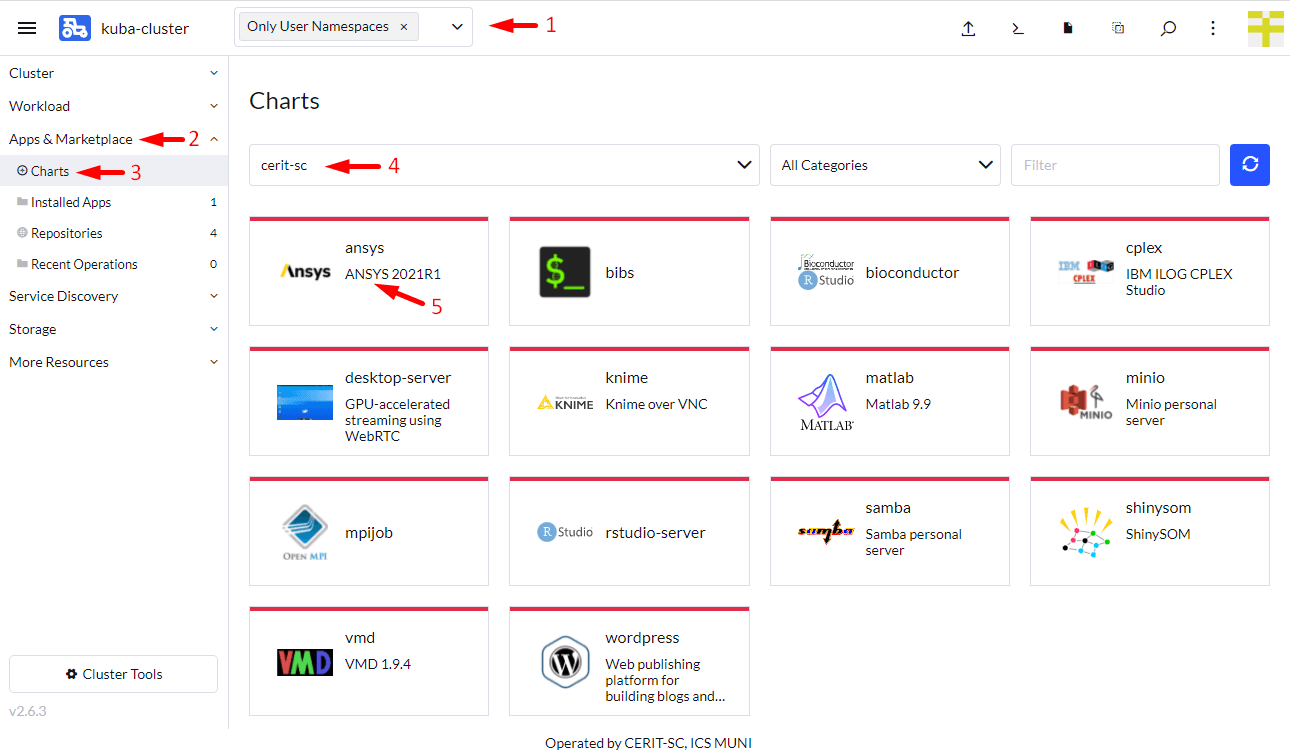
Make sure you have not selected a namespace and see User namespaces only (1) at the top of the Rancher page.
Navigate through Apps & Marketplace (2), Charts (3), restrict charts to cerit-sc (4) only, and select Ansys (5). See the screenshot below.
Selecting the version of the application
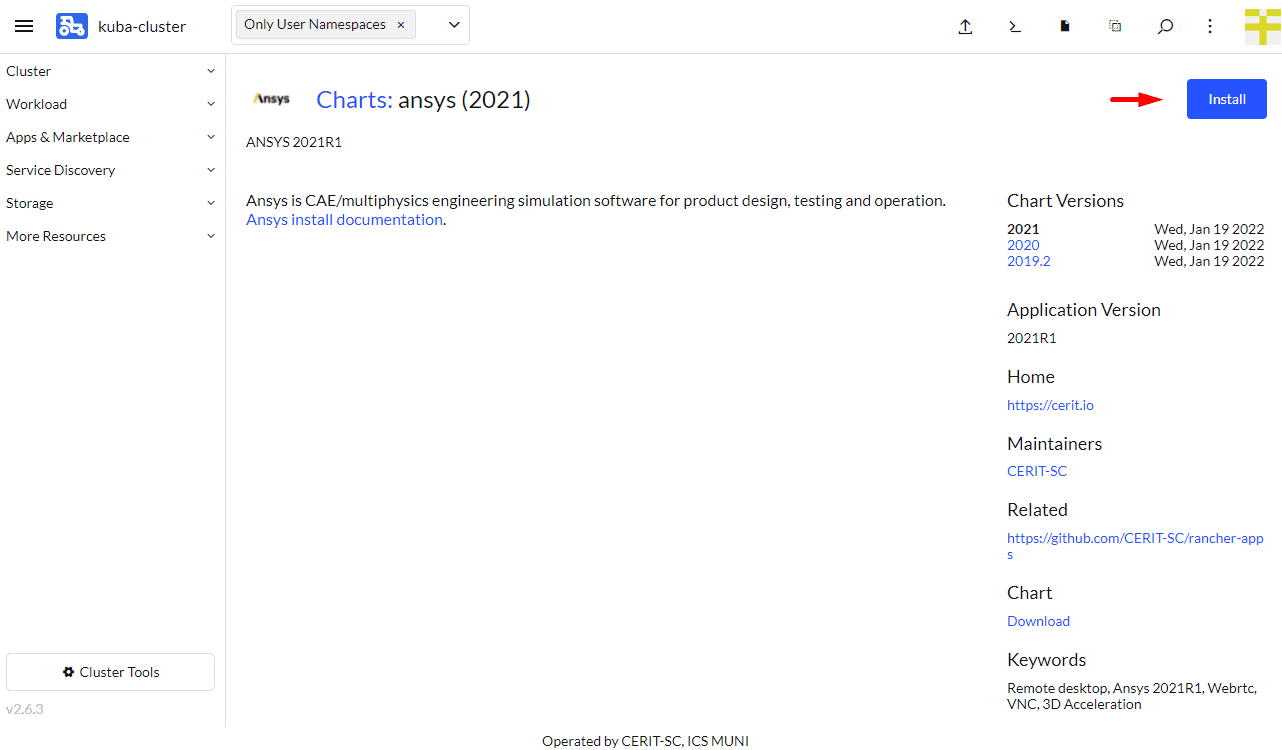
When you click on the chart, you can select the application version as shown below. Select ‘Chart Version’. Under ‘Application Version’, you will find the exact Ansys version. Versions may vary over time. Press Install to continue.
Installing the application
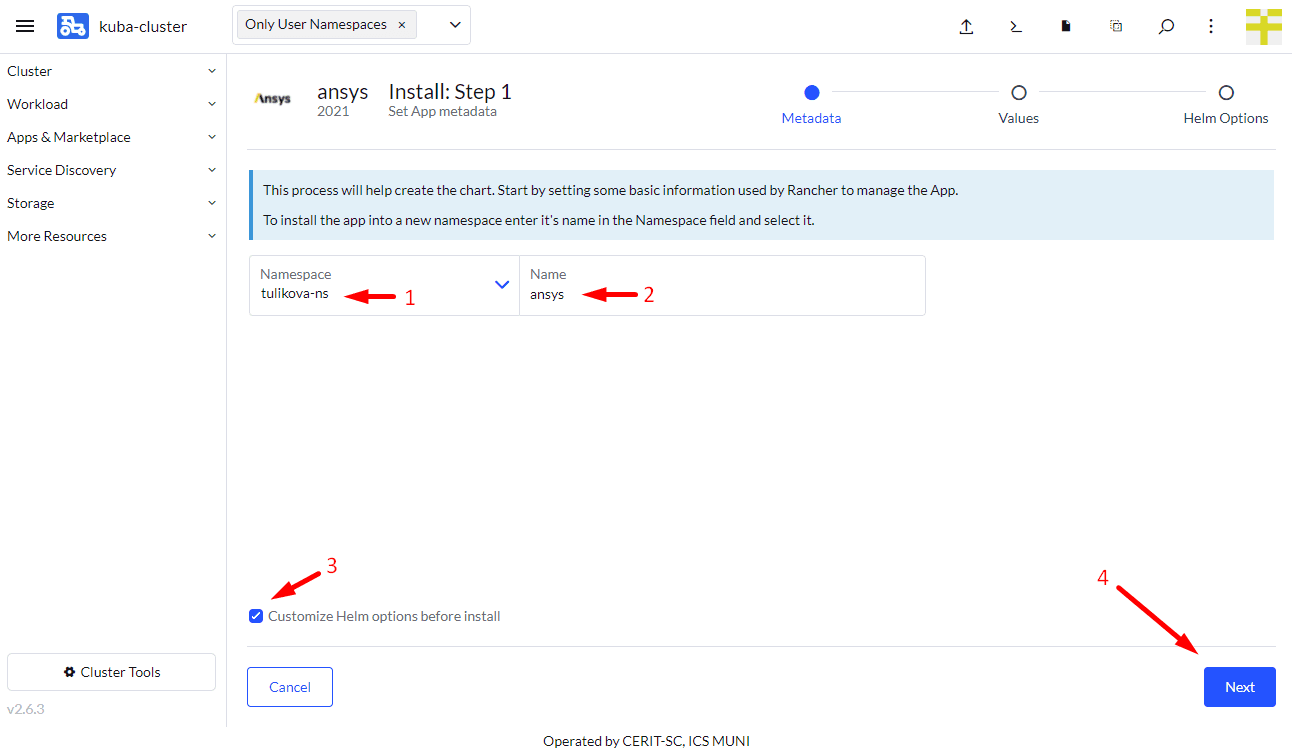
Now you are ready to install the Ansys application. In most cases, you should leave both Namespace (1) and Name (2) unchanged, but select Customize Helm options before install (3). You can select any namespace except default. The default namespace is available but is not intended for general use. The Name is used in the URL to access the application. The Name must be unique within the Namespace; you cannot run two or more instances with the same Name in the same Namespace. If you delete the application and later reinstall it using the same Name, the contents of the home directory will be preserved.
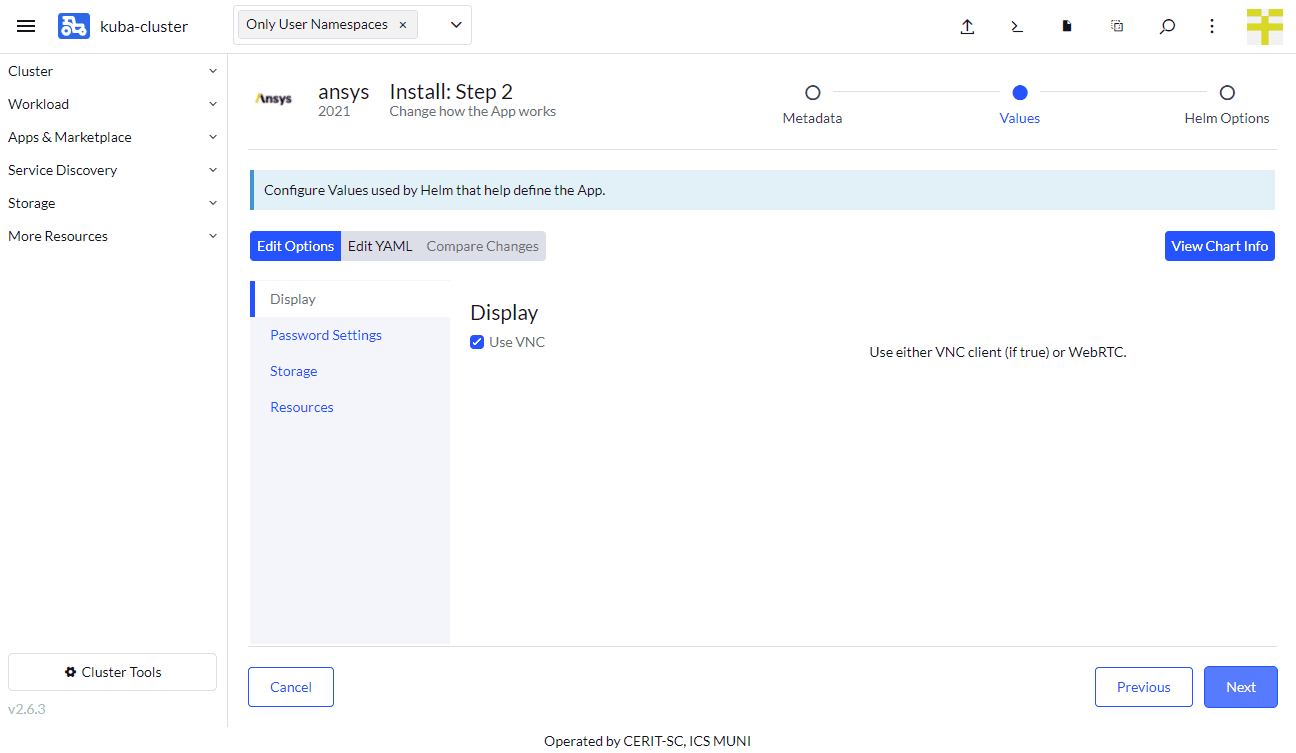
In the first part of the form, select the access method. The VNC method is the default. You will need a VNC viewer program such as RealVNC or vncviewer on most Linux distributions. On macOS, simply type vnc://host in the Safari browser, replacing host according to the instructions below. Do not press Install until the form is complete. When using VNC, only software drawing is available; 3D acceleration is not possible.
If VNC is not selected, the WEBRTC method will be used. This option is still in beta and not ready for production use, but full 3D OpenGL acceleration is available.
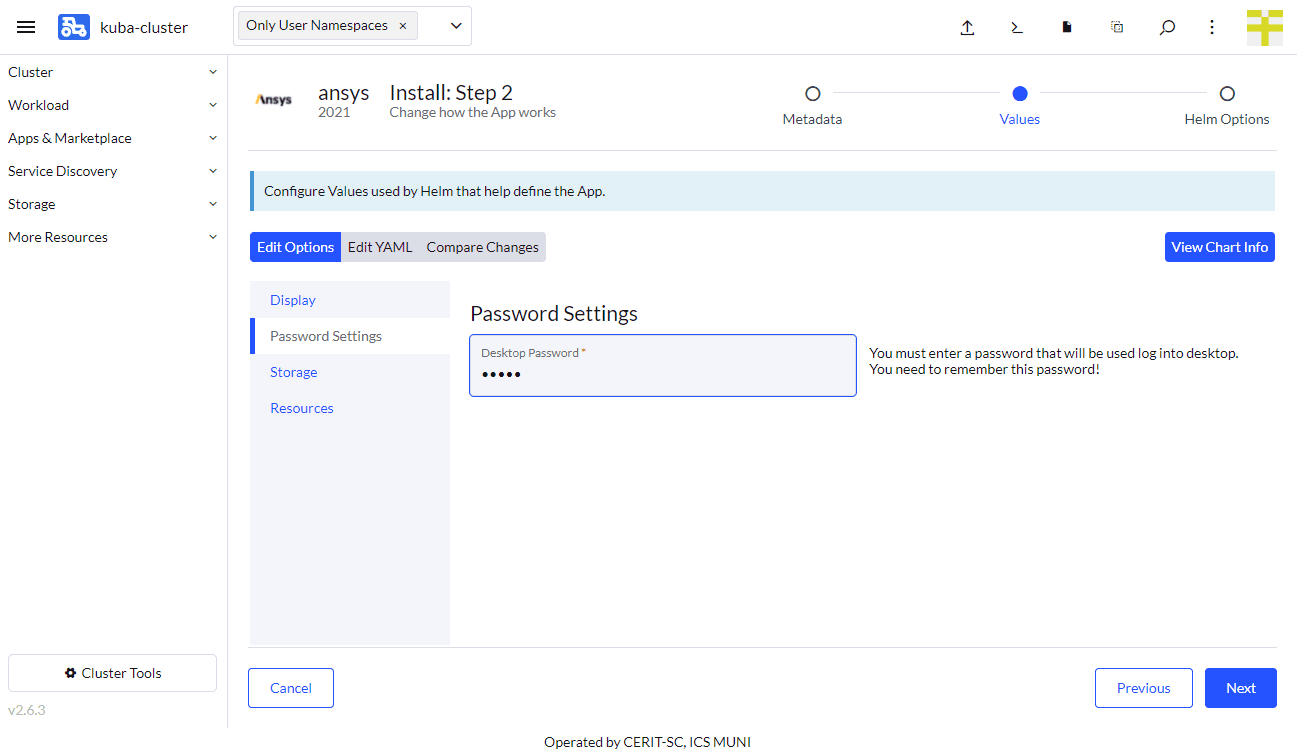
In the second part of the form, choose a password. This password is used for VNC login. If VNC is not selected, you must also fill in the username field. These credentials will be used in the browser to connect to the WEBRTC session.
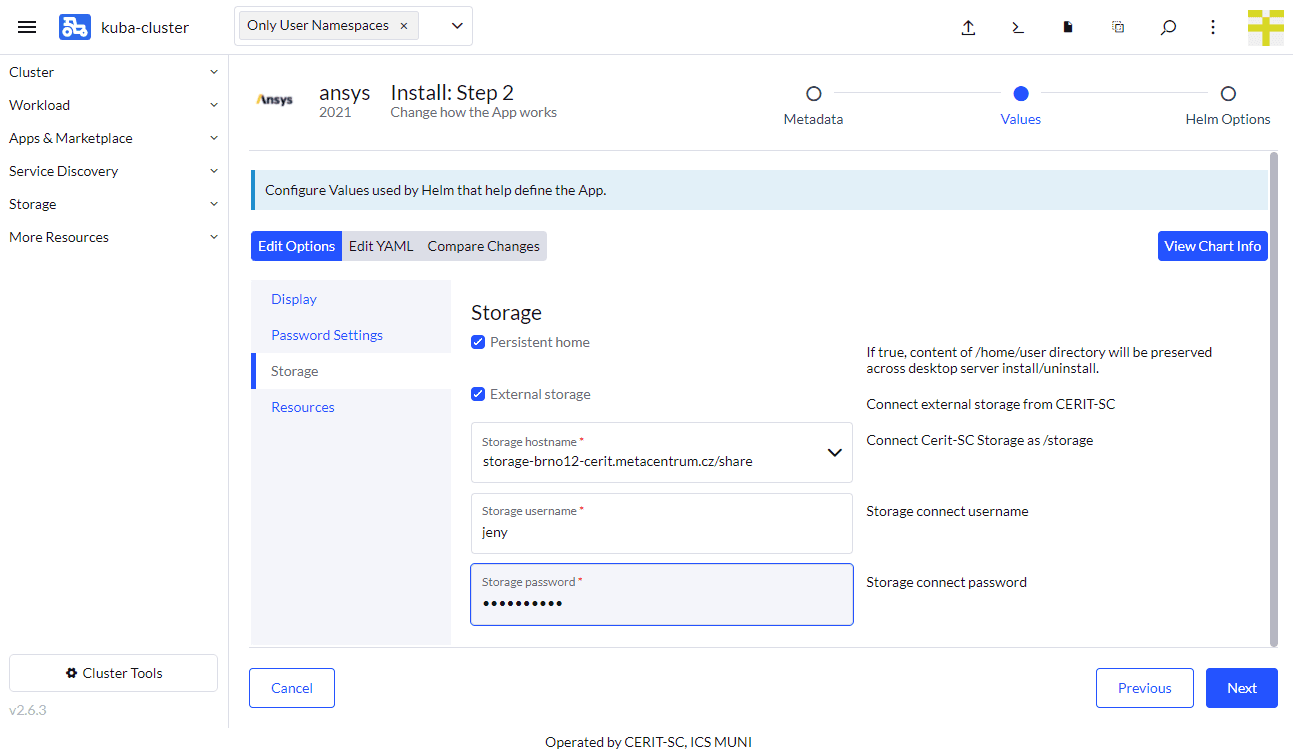
In the third part of the form, select whether you want a persistent home directory—a home directory that will be preserved even if you uninstall the application. Note: The persistent home is bound to the application name from the beginning of the installation form. If you set the name to ansys, the persistent home will be bound to the name ansys. If you choose the name ansys-0 next time, you will get a new home bound to the name ansys-0.
In this part, you can select e-INFRA CZ storage to connect to the application. If you check External Storage, additional options will appear. You can select storage and credentials. Currently, only storage-brno12-cerit.metacentrum.cz is supported. The username is your e-INFRA CZ (MetaCentrum) login, and the password is not your MetaCentrum password but a different one set by the administrator. Contact us if you need to set this password. We are preparing a more convenient method. This storage will be mounted to the /storage directory.
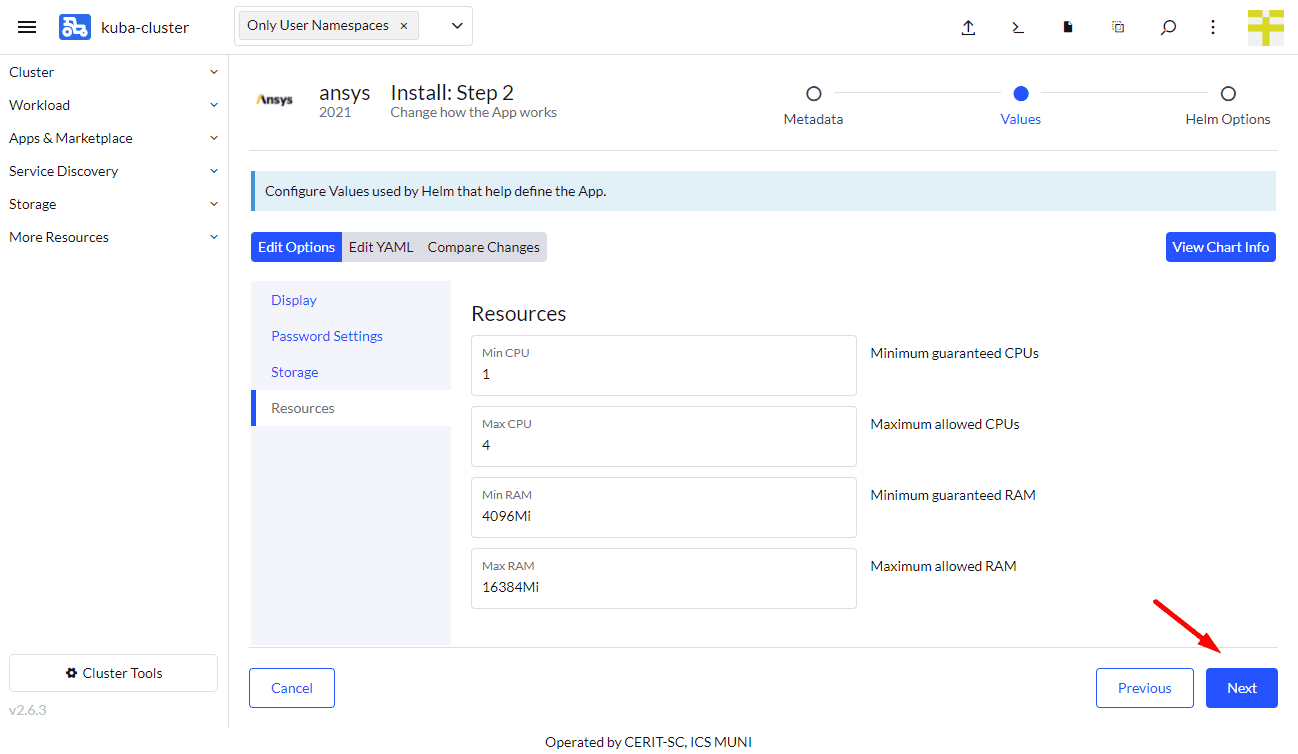
In the fourth part of the form, you can select the requested resources. This step is optional. Minimum CPU or RAM is a guaranteed amount of CPU and RAM; the system reserves these resources for the application. However, the application can exceed the guaranteed resources up to the Maximum. In this case, the resources are not exclusive and can be shared with other applications. If the application exceeds the Maximum CPU, it will be limited. If it exceeds the Maximum RAM, it will be terminated (you will see an OOMKill report) and restarted. See the note above about maximum values.
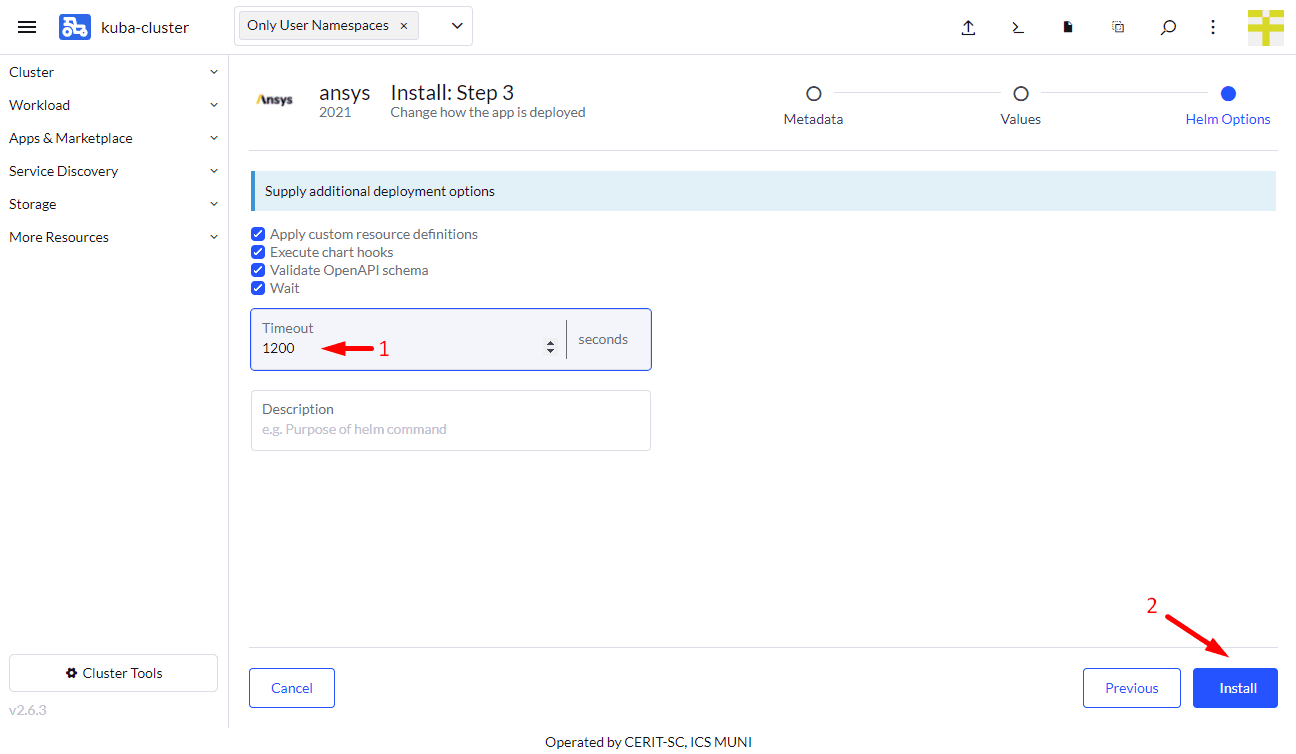
In the fifth part of the form, select a timeout of 1200 seconds; this is necessary due to the very large Ansys images. Finally, press Install.
Wait for the application to start
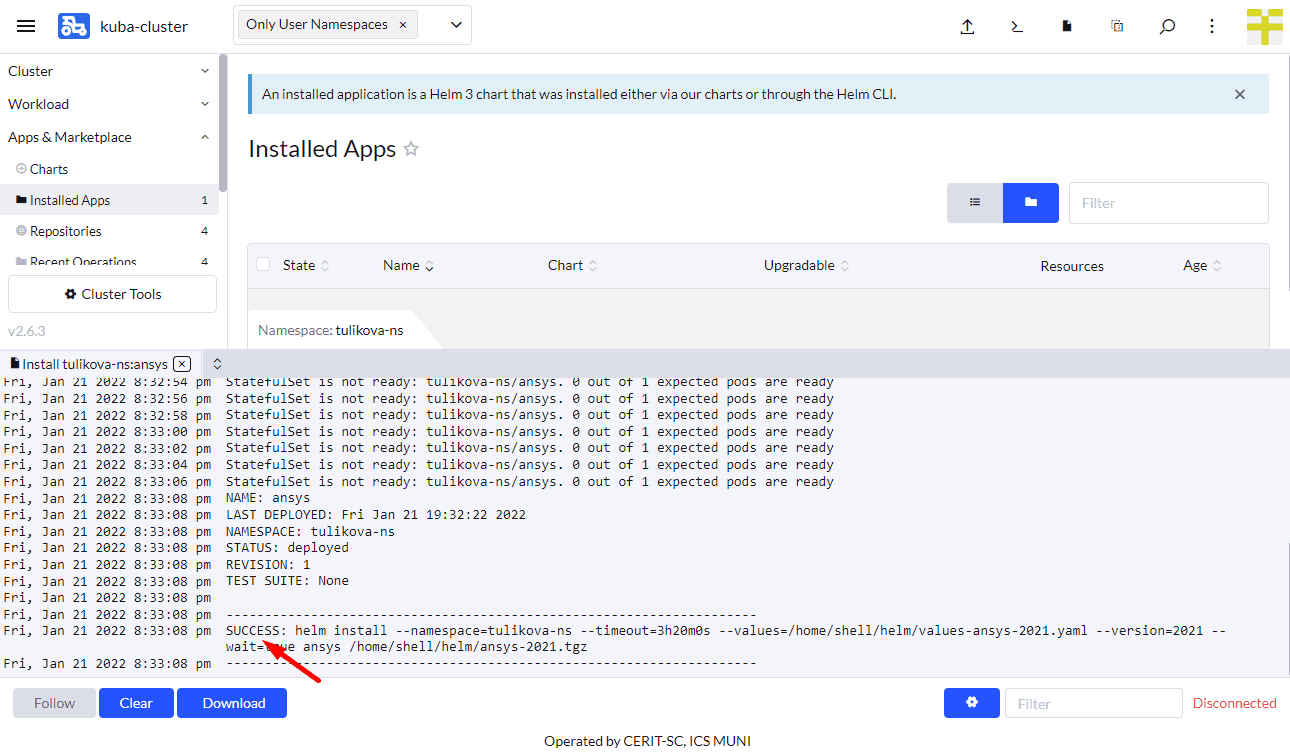
When you press Install, you will see the installation log. When you see SUCCESS (see the screenshot below), the application is running.
It may take some time for the application to become ready, as it downloads a 20GB Docker container. If the container is not already cached, the first start can take up to 20 minutes.
If the entered password was not correct, the installation will remain pending indefinitely. In this case, delete the application and start again.
Connecting to the Running Instance
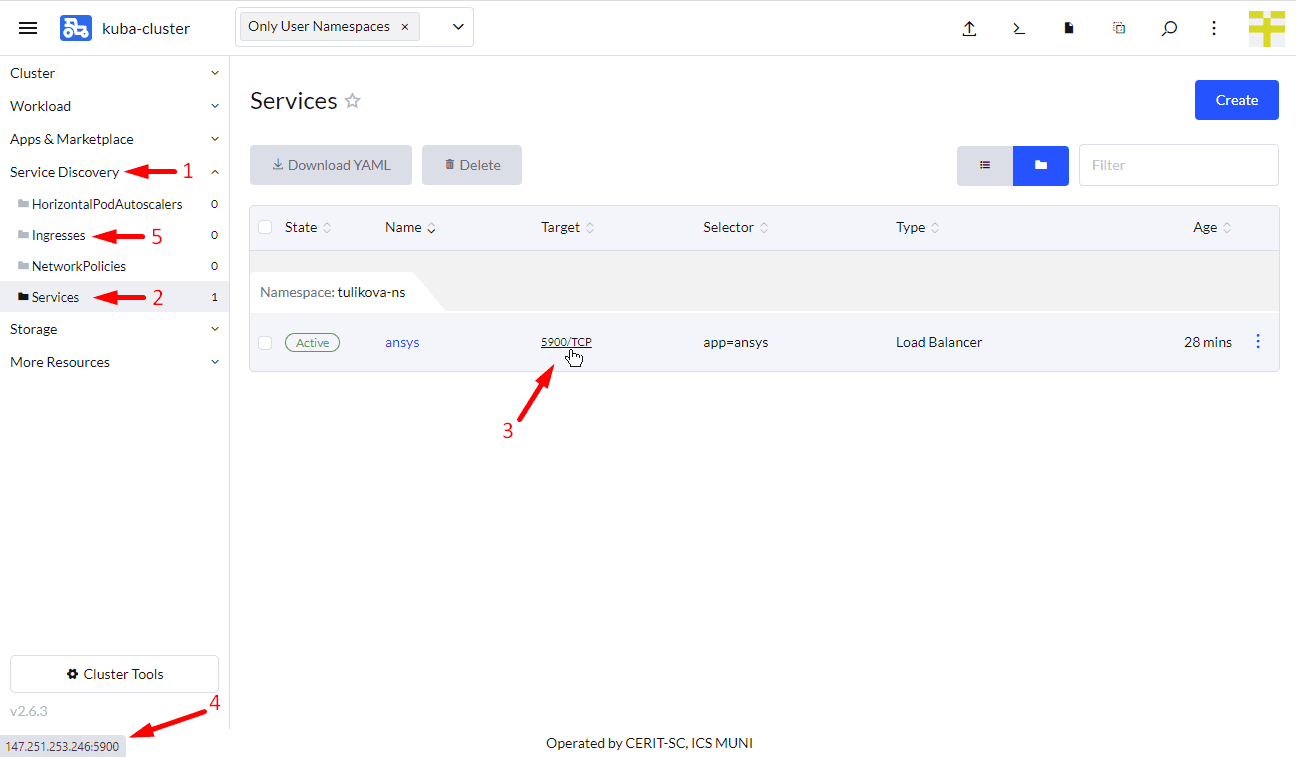
Once the application is running, for the VNC version, navigate through Service Discovery (1) and Services (2), hover the mouse over Target (3). Depending on your browser, you should see the target URL (4). The Chrome browser shows it in the lower-left corner. This is the IP address and port you need to provide to your vncviewer application or enter in the Safari navigation bar, for example, vnc://147.251.253.246.
For WEBRTC, instead of Services, navigate to Ingresses (5). You will see the full URL to click and start the WEBRTC connection.
The VNC client will ask for a password. Enter the password from the form. The WEBRTC connection will ask for a username and password; these are not your MetaCentrum username and password but the ones entered at the beginning of the form.
Ansys
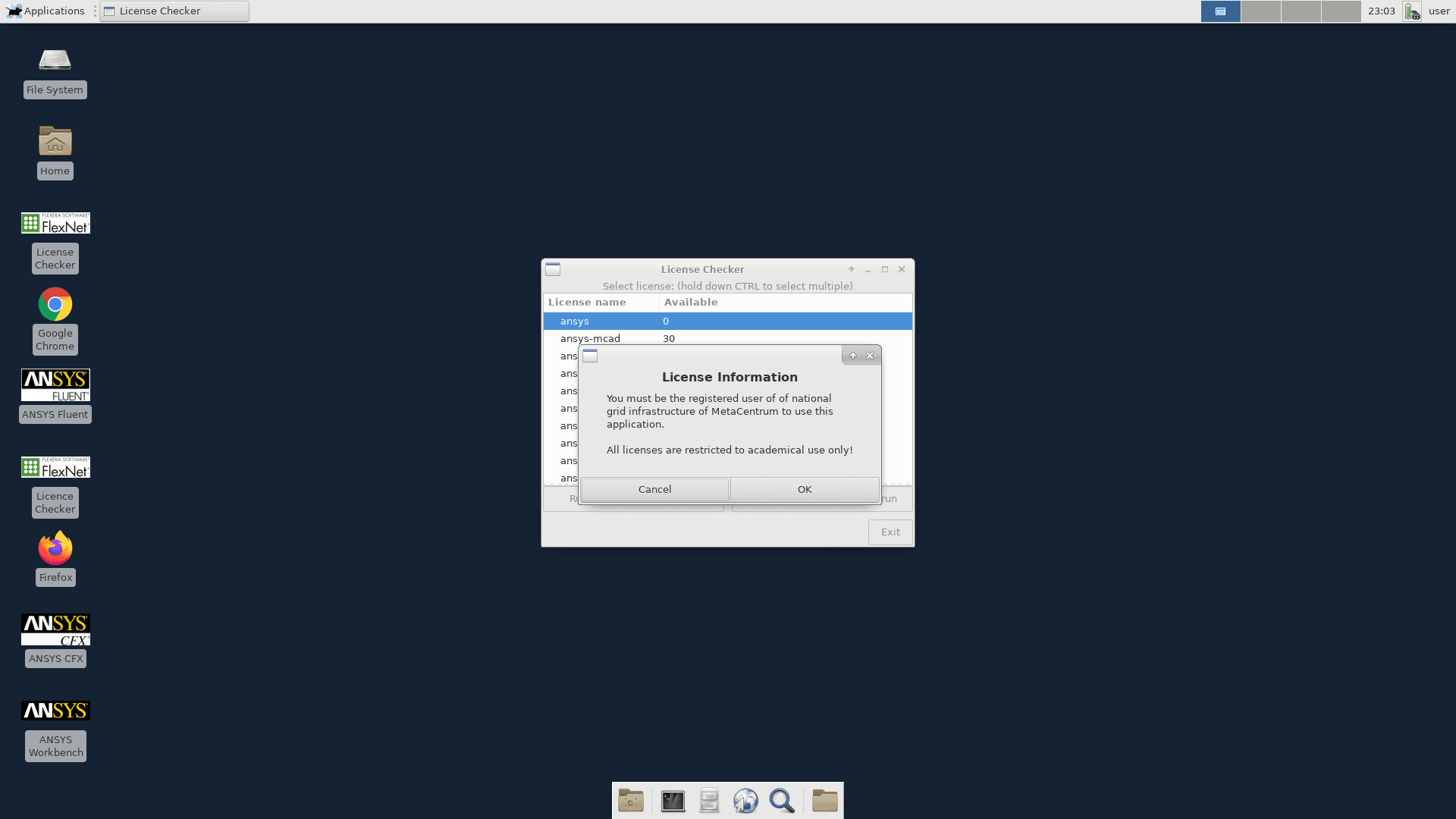
At the first login, the desktop will look like this:
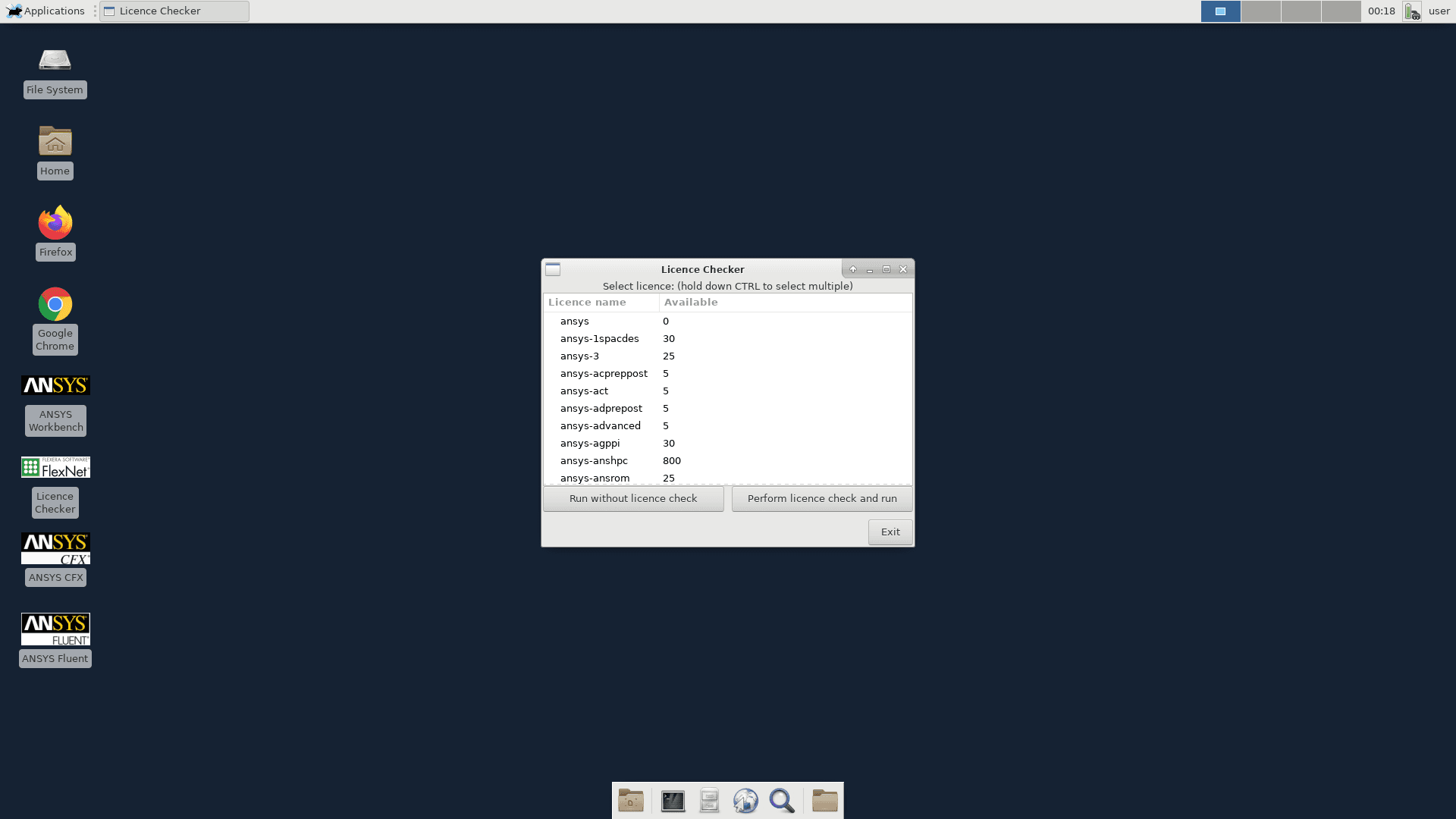
You will see the license checker, which checks the available Ansys licenses. You can choose which licenses you want to use. If there are no free licenses, it will check periodically, and when a license becomes free, it will start smoothly. Alternatively, you can start other parts of Ansys using icons on the desktop or by using the terminal.
Since Ansys is a licensed product, you must agree that you are using this product for academic purposes only and that you are entitled to use the license—that is, you are a MetaCentrum user.
Delete Running Instance
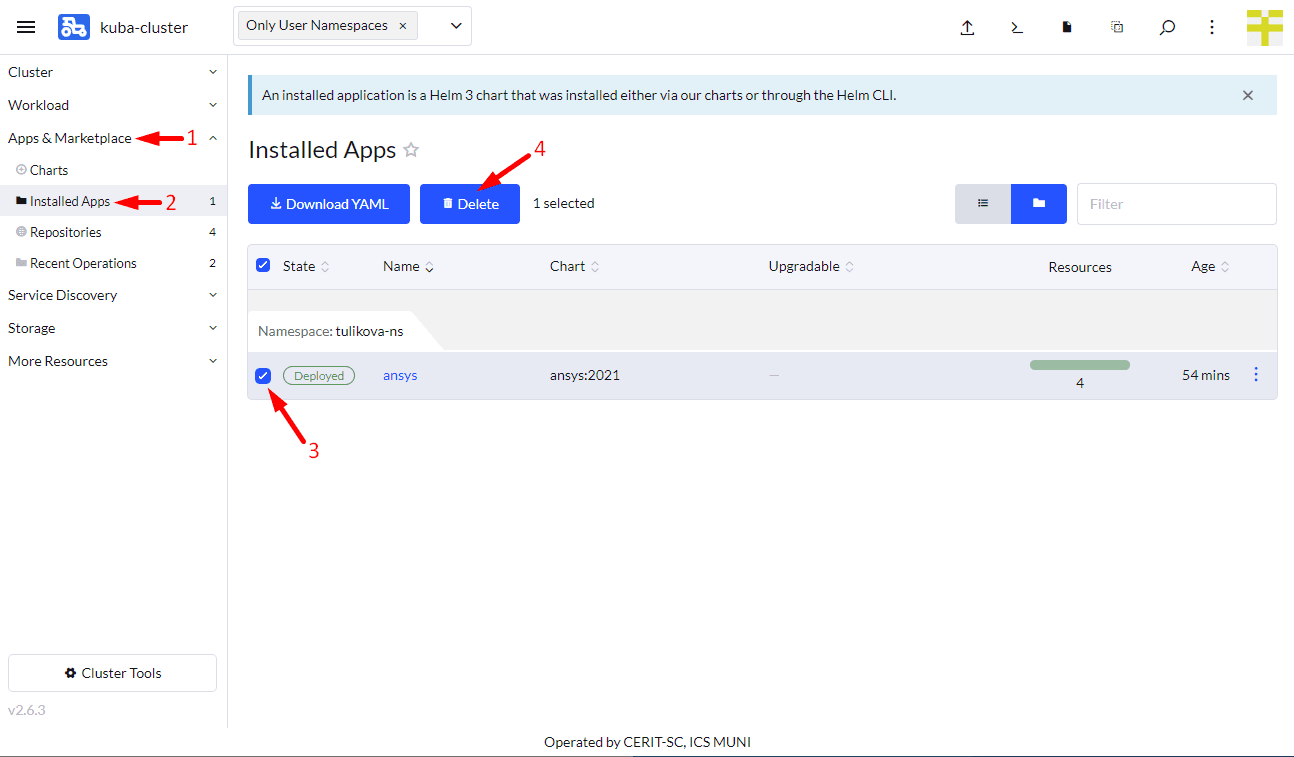
If you decide you no longer need an application, you can delete it. Go to Apps & Marketplace (1), Installed Applications (2), select the application (3), and press Delete (4). The data in the home directory will not be deleted if you selected persistent home. Running the application again with the same name will restore access to the home folder.